Our answer#1 of 4

NordVPN
Best for GamingThreat Protection blocks DDoS · lowest ping in our tests · router-ready.
Get NordVPN30-day money-back guarantee
Decision guide · Updated September 2026
Xbox has no native VPN support, so you route it through your router or a PC hotspot. A good VPN blocks DDoS, lowers ping, and opens up region-locked games.
NordVPN
Best for GamingThreat Protection blocks DDoS · lowest ping in our tests · router-ready.
Get NordVPNThe ranking
Ordered by our overall score, aggregated from independent testing labs.



Xbox gaming opens up massive worlds and online friendships. It also comes with real headaches: geo-restricted games, ISP throttling during peak hours, DDoS attacks, and exposed data on shared networks.
The right VPN solves all of this. It accesses region-locked content, smooths out lag, and keeps your connection encrypted. Here’s what every Xbox gamer needs to know about picking and setting up a VPN on console.
DDoS (Distributed Denial of Service) attacks flood your IP address with junk traffic. This overwhelms your connection and kicks you offline. In competitive Xbox titles like Call of Duty, Halo, and Rainbow Six Siege, some players use DDoS tools to force opponents to disconnect mid-match.
When you connect through a VPN, your real IP address stays hidden. Attackers only see the VPN server’s IP. Even if they flood that address, the VPN provider’s infrastructure absorbs the traffic. Your home network stays untouched.
Three VPN features matter most for DDoS protection:
DDoS attacks remain common in ranked and tournament play. A VPN is the simplest way to stay protected without changing your network hardware.
Xbox consoles have no native VPN app support. This makes compatibility the most important factor. Every VPN on this list must work through a router, Smart DNS, or PC sharing method.
Beyond compatibility, focus on these specs:
The right VPN boosts your Xbox gaming with faster connections, access to geo-restricted content, and real security improvements. Here are the three best options, tested on Xbox Series X and Xbox One.
ExpressVPN runs the Lightway protocol, which averages 340 Mbps on a 500 Mbps connection in independent speed tests. It operates 3,000+ servers across 105 countries. This gives Xbox gamers wide access to region-locked Game Pass titles and early-release windows.
ExpressVPN also offers a dedicated router app with a visual interface. You don’t need to manually enter server addresses or protocol settings. The MediaStreamer (Smart DNS) feature works directly on Xbox without a router, though it doesn’t encrypt traffic.
Best for: Gamers who want the easiest router setup and fastest speeds.
NordVPN runs the NordLynx protocol (built on WireGuard) and averages 320 Mbps on a 500 Mbps base connection. It operates 6,400+ servers across 111 countries, the largest network on this list.
NordVPN stands out for security. Its Threat Protection feature blocks malicious DNS requests and ads at the network level. The dedicated IP add-on ($3.69/month extra) gives you a static address that won’t trigger Xbox Live bans from shared VPN IPs.
Best for: Ranked and tournament players who need DDoS protection and a dedicated IP.
Surfshark offers unlimited simultaneous connections on a single account. This means your Xbox, PC, phone, and every other device in your household can connect at once. It runs WireGuard and averages 290 Mbps on a 500 Mbps connection.
Surfshark operates 3,200+ servers across 100 countries. Its Smart DNS feature works directly on Xbox without a router. The CleanWeb feature blocks ads and trackers at the DNS level.
Best for: Budget-conscious gamers and households with multiple devices.
| Feature | ExpressVPN | NordVPN | Surfshark |
|---|---|---|---|
| Monthly price (best plan) | $6.67 | $3.39 | $2.49 |
| Servers | 3,000+ | 6,400+ | 3,200+ |
| Countries | 105 | 111 | 100 |
| Avg. speed (500 Mbps base) | 340 Mbps | 320 Mbps | 290 Mbps |
| Protocol | Lightway | NordLynx | WireGuard |
| Smart DNS for Xbox | Yes (MediaStreamer) | Yes | Yes |
| Router app | Yes (visual UI) | Manual config | Manual config |
| Dedicated IP option | No | Yes ($3.69/mo) | No |
| Simultaneous connections | 8 | 10 | Unlimited |
| DDoS protection | IP masking | IP masking + dedicated IP | IP masking |
Xbox doesn’t support VPN apps natively. This is the same limitation PlayStation users face. You’ll need one of three methods.
| Setup Method | Security Level | Difficulty | Devices Protected | Best For |
|---|---|---|---|---|
| Router setup | Highest | Moderate | All devices on the network | Permanent always-on protection |
| PC hotspot (wireless) | High | Easy | Xbox only | Quick temporary setup |
| PC via Ethernet share | High | Easy | Xbox only | Wired stability without router access |
Confirm your router supports VPN firmware. Popular options include Asus RT-AX86U, Netgear Nighthawk R7000, and Linksys WRT3200ACM. Log in to the router admin panel (usually 192.168.1.1). Navigate to the VPN client section. Enter the VPN server address, your credentials, and select the protocol (WireGuard or OpenVPN). Save the settings and reboot the router.
On your Xbox, go to Settings > General > Network Settings > Set Up Wireless Network. Connect to your router’s network. All traffic now routes through the VPN.
Xbox-specific note: If your Xbox shows “NAT Type: Strict” after connecting, enable UPnP in your router settings. Some VPN protocols restrict NAT, which can block party chat and multiplayer matchmaking.
Install the VPN on your computer and connect to a server. Plug an Ethernet cable from your PC to your Xbox. On Windows, go to Settings > Network & Internet > Mobile Hotspot and enable sharing. On Mac, go to System Preferences > Sharing > Internet Sharing and select the Ethernet interface.
On your Xbox, go to Settings > General > Network Settings > Set Up Wireless Network (or wired, if using Ethernet). Connect to the shared network.
Xbox-specific note: This method adds 5-15ms latency because traffic routes through your PC first. Use Ethernet sharing instead of Wi-Fi hotspot for the most stable connection.
Smart DNS changes your DNS server address to access geo-restricted content. It does not encrypt traffic or hide your IP. This method works for accessing region-locked Game Pass content but offers zero DDoS protection.
On your Xbox, go to Settings > General > Network Settings > Advanced Settings > DNS Settings. Select Manual. Enter the Smart DNS addresses from your VPN provider (ExpressVPN MediaStreamer: check your account dashboard for current IPs). Restart your Xbox.
Xbox-specific note: Smart DNS works on Xbox 360, Xbox One, and Xbox Series X|S. It’s the fastest method because it adds no encryption overhead.
Connect to a VPN server geographically close to the Xbox game server. For Halo Infinite (Azure servers in East US), use a US East VPN server. For Forza Motorsport (Azure servers in West Europe), use a UK or Netherlands server. Switch from OpenVPN to WireGuard or Lightway for lower protocol overhead.
Strict NAT blocks party chat, voice comms, and some multiplayer modes. Enable UPnP in your router’s admin panel. If that doesn’t work, manually forward Xbox Live ports: TCP 3074 and UDP 3074, 88, 500, 3544, 4500. Some VPN protocols block these ports by default.
Clear your Xbox DNS cache first. Go to Settings > Devices & Connections > Blu-ray > Persistent Storage > Clear Persistent Storage. Then restart your Xbox. If content is still blocked, disconnect and reconnect to a server in the correct region. Some Game Pass titles check your Microsoft account region, not just your IP.
Double-check your router VPN settings. Make sure the VPN protocol matches your provider’s recommended option. Restart both your router and Xbox. Run the Xbox network test (Settings > General > Network Settings > Test Network Connection) to confirm connectivity.
Large Xbox game updates (50-100 GB) suffer more from VPN encryption overhead. Switch to WireGuard or Lightway for the fastest download speeds. If you only need the VPN for online play, disconnect during downloads and reconnect before launching multiplayer.
A VPN is essential for serious Xbox gamers. It accesses region-restricted games and streaming apps, lowers ping, blocks DDoS attacks, and keeps your data encrypted. Since Xbox doesn’t support native VPN apps, your setup method matters as much as your provider choice.
Here’s how to choose based on your situation:
| Your Priority | Best VPN | Best Setup Method |
|---|---|---|
| Easiest setup + fastest speeds | ExpressVPN | Router app or Smart DNS |
| DDoS protection + ranked play | NordVPN | Router + dedicated IP |
| Budget + multiple devices | Surfshark | Smart DNS or PC sharing |
| access Game Pass regions only | Any of the three | Smart DNS (fastest) |
| Whole-home protection | ExpressVPN or NordVPN | Router setup |
ExpressVPN offers the best overall experience with its dedicated router app and fastest speeds. NordVPN leads on security with its dedicated IP option and Threat Protection feature. Surfshark is the best budget pick with unlimited device connections at $2.49/month.
Pick the VPN that matches your setup, follow the installation steps above, and start gaming with fewer restrictions and better protection.
Quick tip: Use the router method for a permanent setup. It protects your Xbox and every other device on the network without any per-session configuration. If you experience lag after connecting, switch to a geographically closer server and use a wired Ethernet connection instead of Wi-Fi. If geo-restricted content is still unavailable after connecting, clear your Xbox persistent storage: go to Settings > Devices & Connections > Blu-ray > Persistent Storage > Clear Persistent Storage, then restart your console and reconnect to the VPN.
VPN.com does not encourage or condone using VPN services to violate the terms of service of any platform. Information on this page is provided for educational purposes. Users are responsible for complying with the policies of the services they use.
Charts and reference images from our testing, free to view and share.
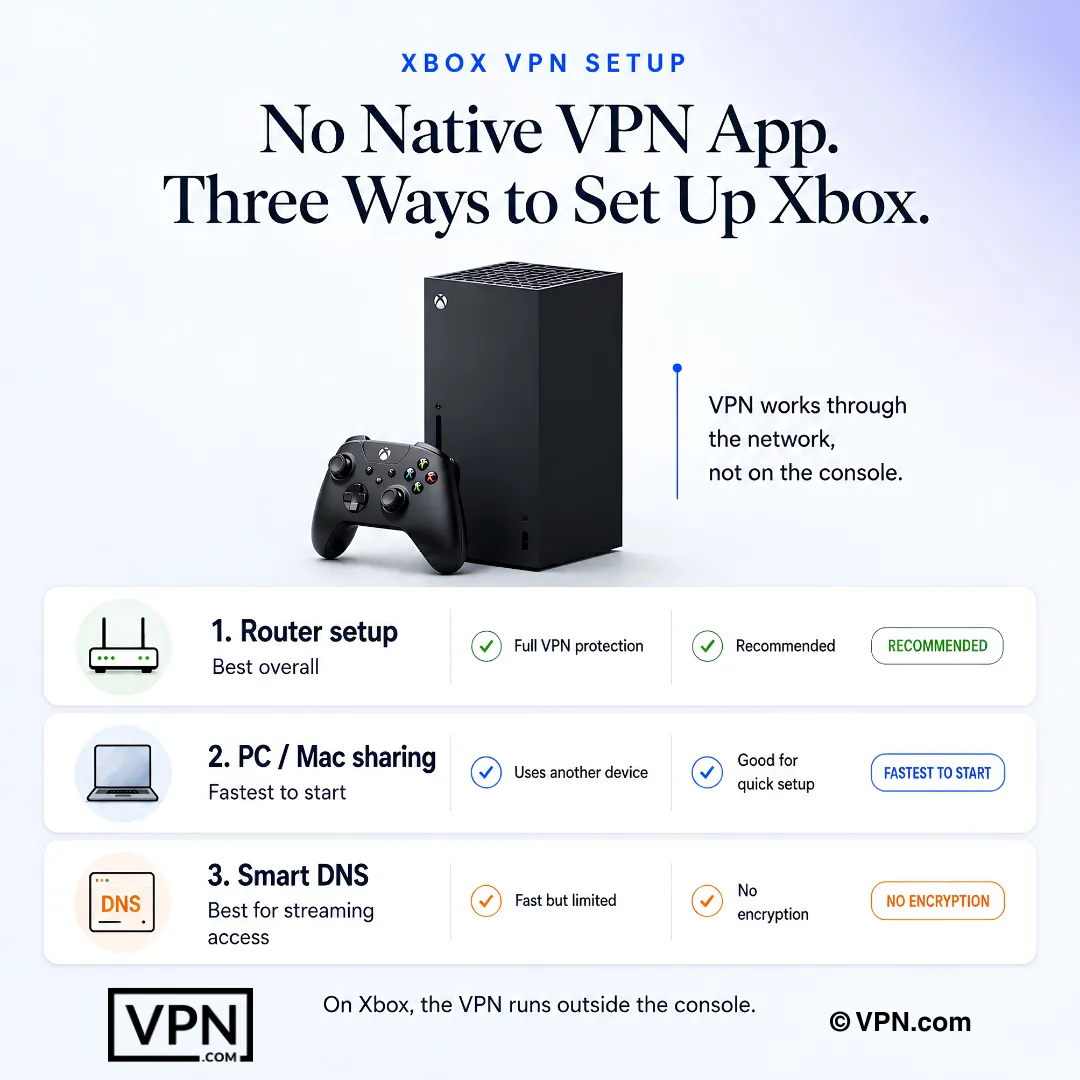
Xbox has no native VPN app, so you route traffic through a VPN-compatible router (Asus RT-AX86U, Netgear Nighthawk R7000, and Linksys WRT3200ACM all support VPN firmware), a PC or Mac sharing its connection over Ethernet or hotspot, or a Smart DNS feature like ExpressVPN’s MediaStreamer. Router setup protects every device on the network; the other two methods cover only the Xbox.
A VPN hides your Xbox’s real IP, so attackers flooding traffic only hit the VPN server, which absorbs the load while your home connection stays untouched. NordVPN’s dedicated IP add-on reduces the chance of a shared address getting flagged by Xbox Live, and disabling port forwarding closes the peer-to-peer leak DDoS tools exploit in titles like Rainbow Six Siege.
Smart DNS only reroutes DNS requests to access geo-restricted Game Pass content; it adds no encryption, doesn’t hide your IP, and offers zero DDoS protection. A full VPN routed through a router or PC-sharing encrypts all traffic and masks your IP. ExpressVPN’s MediaStreamer runs Smart DNS directly on Xbox without a router, but pair it with an encrypted connection if DDoS protection matters for ranked play.
NordVPN ranks #1 of 22 in our Speed Lab, aggregated from independent labs, reflecting strong overall throughput, and its NordLynx (WireGuard-based) protocol keeps typical speed loss around 10-15%. Ping itself depends more on server distance than protocol: connect to a server near your game’s host region, since Halo Infinite runs on East US Azure servers and Forza Motorsport runs on West Europe servers.
Yes. Connecting to a VPN server in another country accesses region-locked Xbox Game Pass titles, DLC, and sometimes games before their local release date. NordVPN spans 129+ countries, ExpressVPN covers 105, and Surfshark reaches 100+, giving you plenty of regional libraries to try. Smart DNS features like MediaStreamer also work directly on Xbox without a router for this specific use case.
It can. Microsoft sometimes checks your Xbox account region separately from your IP address, so a VPN alone may not access content, and combining one with a region change can run against Xbox Live’s terms of service. A VPN itself isn’t illegal to use, but region-shifting to access unreleased games or Game Pass libraries is done at your own risk under Microsoft’s platform rules.
It depends on the provider. Surfshark allows unlimited simultaneous connections, useful if your Xbox, PC, and phones all need coverage at once. NordVPN covers 10 devices, ExpressVPN covers 10 to 14 depending on plan, and CyberGhost covers 7. Any of the four also support a router setup, which protects every device on the network as a single connection.
Promotional long-term rates range from $2.03 to $3.49 per month across this list. CyberGhost starts from $2.03/month on its longest-term plan, Surfshark from $2.49/month, ExpressVPN from $3.26/month, and NordVPN from $3.49/month, all on their longest terms. NordVPN’s dedicated IP add-on for reducing Xbox Live flags on shared addresses costs extra on top of the base plan.
Yes, every provider on this list backs its plans with a guarantee. NordVPN, ExpressVPN, and Surfshark each offer a 30-day money-back guarantee, while CyberGhost extends that to 45 days. Test router setup, ping, and DDoS protection during that window and request a refund through support before it closes if performance doesn’t hold up.
Confirm your router supports VPN client firmware (Asus RT-AX86U, Netgear Nighthawk R7000, and Linksys WRT3200ACM all work), log into the admin panel at 192.168.1.1, and enter your VPN’s server address, credentials, and protocol under the VPN client section. On Xbox, go to Settings, General, Network Settings, Set Up Wireless Network, then connect to your router’s network to route all traffic through it.
Install the VPN on your PC or Mac, connect to a server, then share that connection over Ethernet: on Windows via Settings, Network and Internet, Mobile Hotspot, or on Mac via System Preferences, Sharing, Internet Sharing. This method adds a small amount of extra latency since traffic routes through your computer first, so use Ethernet sharing rather than a Wi-Fi hotspot for the most stable connection.
Strict NAT blocks party chat, voice comms, and some multiplayer modes because certain VPN protocols restrict NAT type by default. Enable UPnP in your router’s admin panel first. If that doesn’t fix it, manually forward Xbox Live’s ports: TCP 3074 and UDP 3074, 88, 500, 3544, and 4500, since some protocols block these ports outright.
Switch to a server geographically closer to your game’s host servers, since distance drives ping more than the VPN itself. Also switch protocols: WireGuard-based NordLynx or Lightway carry less overhead than OpenVPN. Large Xbox game updates of 50 to 100 GB suffer more from encryption overhead too, so disconnect the VPN during downloads and reconnect only before online multiplayer sessions.